Render
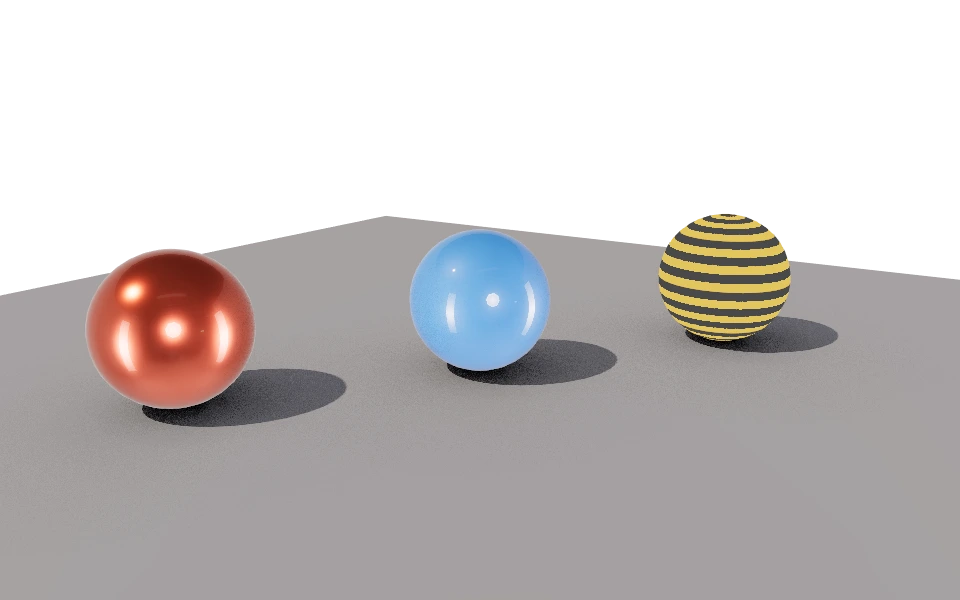
The Render mode creates the final image of the project, with shadows, indirect light, lens blur and camera effects. It is the image for a presentation, a store or a portfolio.
Frame the view, choose the settings in the panel and click Render. What you change afterwards applies to the next image. You can pause, resume or cancel, and cancelling keeps what is already done. The image keeps going when you switch modes, and the mode button shows the progress.
Each section of the panel has its own page, with a before and after of what it changes.
Definitions
The panel settings form a Render definition, saved in the project. Create as many as you like, such as a quick preview and a final version, and switch between them with the selector at the top of the panel.
Renderer
In Settings, Renderer tab, there are two settings for this computer:
- Workers: How many parts of the image are computed at the same time. At 0, the editor chooses based on your processor.
- Bucket size: The size of each part. The default works well on most computers.
Open source
The renderer is open source: github.com/tinypoly/cpu-renderer.
Menus
File
- Save Frame (PNG): Saves the image, even if not finished yet, with a transparent background when chosen.
In this section
- QualitySamples and image resolution.
- EnvironmentThe image that lights, reflects and can become the background.
- Depth of fieldLens blur from the active camera.
- ShadowsShadows from a sharp edge to a soft penumbra.
- Global illuminationLight that bounces between surfaces.
- Ambient occlusionDarkens corners and gaps where ambient light reaches less.
- FogTints distant things with a color, creating depth.
- VignetteDarkens the edges and draws the eye to the center.
- GrainFine film grain over the final image.
- ColorColor curve and exposure of the final image.