Environment
The image that lights, reflects and can become the background.
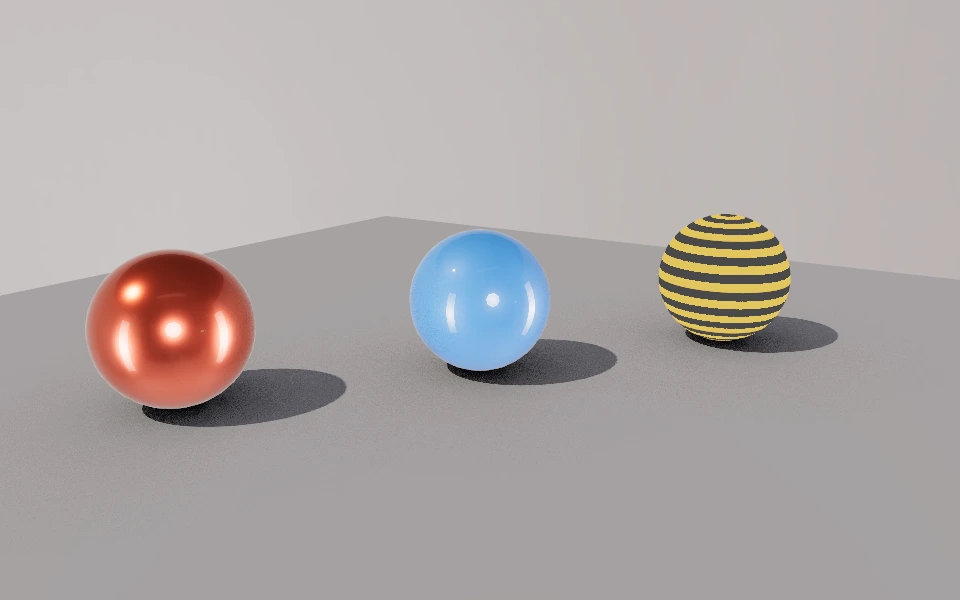
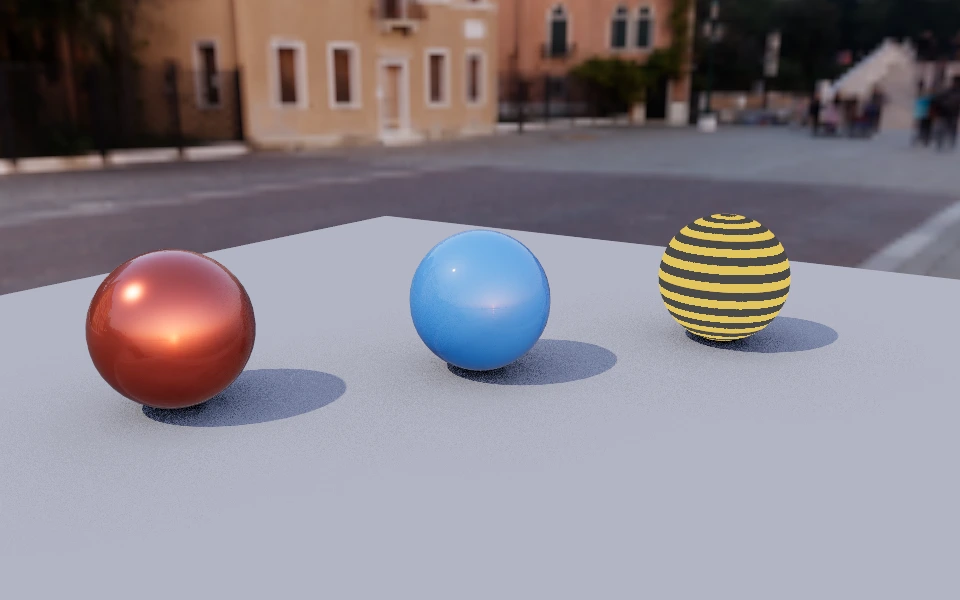
The Environment section chooses the image around the model. It lights the model from every side, shows up reflected on smooth surfaces and can become the background. The two images above only change the environment.
Controls
- Environment image: Studios, streets, beaches, quarry and night.
- Environment intensity: From 0 to 3. The strength of the environment light. At 0 only the project's lights remain.
- Environment rotation: From 0 to 360 degrees. Rotates the environment to bring the sun or the reflection to the side you want.
- Background: What shows behind the model, without changing the lighting.
- Transparent: An empty background. The saved image is ready to place over other artwork.
- Environment (HDRI): The environment image itself.
- Solid color: The color chosen in Background color.
How to use it
For an isolated object, use a studio with a transparent background. To place the model somewhere, use an outdoor environment as the background and rotate it until the light falls at the right angle. Metals and varnished surfaces change the most with the environment.