Viewport
The Viewport is the central area of the editor, where the objects appear. In Geometry Editing it has four views; in the other modes, one perspective view.
Views
- Perspective: A free view, with depth. It is the only one that orbits.
- Top View: From above, without perspective.
- Front View: From the front, without perspective.
- Side View: From the side, without perspective.
Views without perspective are for aligning and measuring. The button in the corner of each view maximizes it.
Navigation
- Orbit: Drag with the left button on an empty area of the perspective view.
- Pan: Drag with the middle button, or with Shift.
- Zoom: Mouse wheel.
Selection
Clicking an object selects it, and clicking an empty area clears the selection. Ctrl or Shift adds to the selection, and the last object clicked is the center for transformations.
With a mesh editor on, a click selects vertices, edges and faces of the object being edited.
With faces or edges selected, Shift+G selects similar ones: by direction, plane, area or number of sides for faces, and by length, direction or angle for edges.
A right click on an empty area opens the object catalog, and the new object is placed at the clicked point.
Gizmos
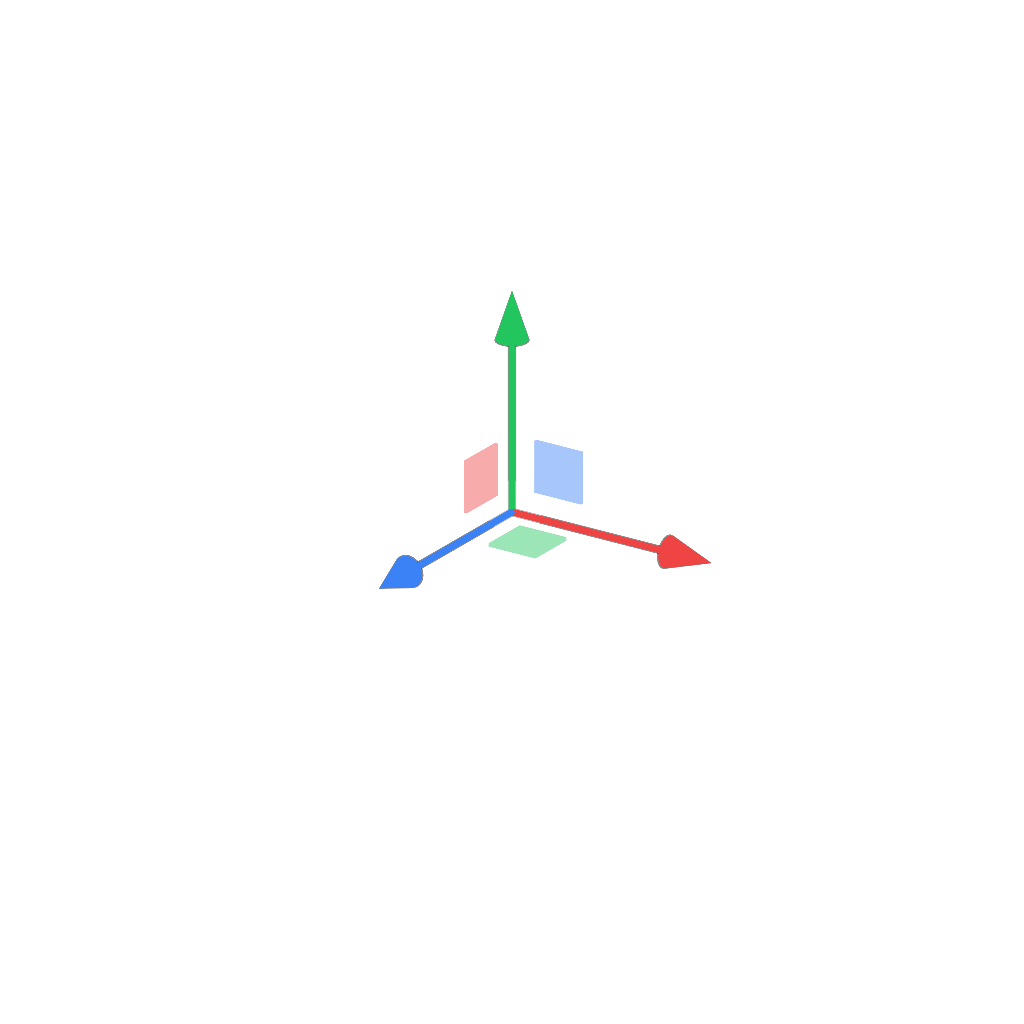
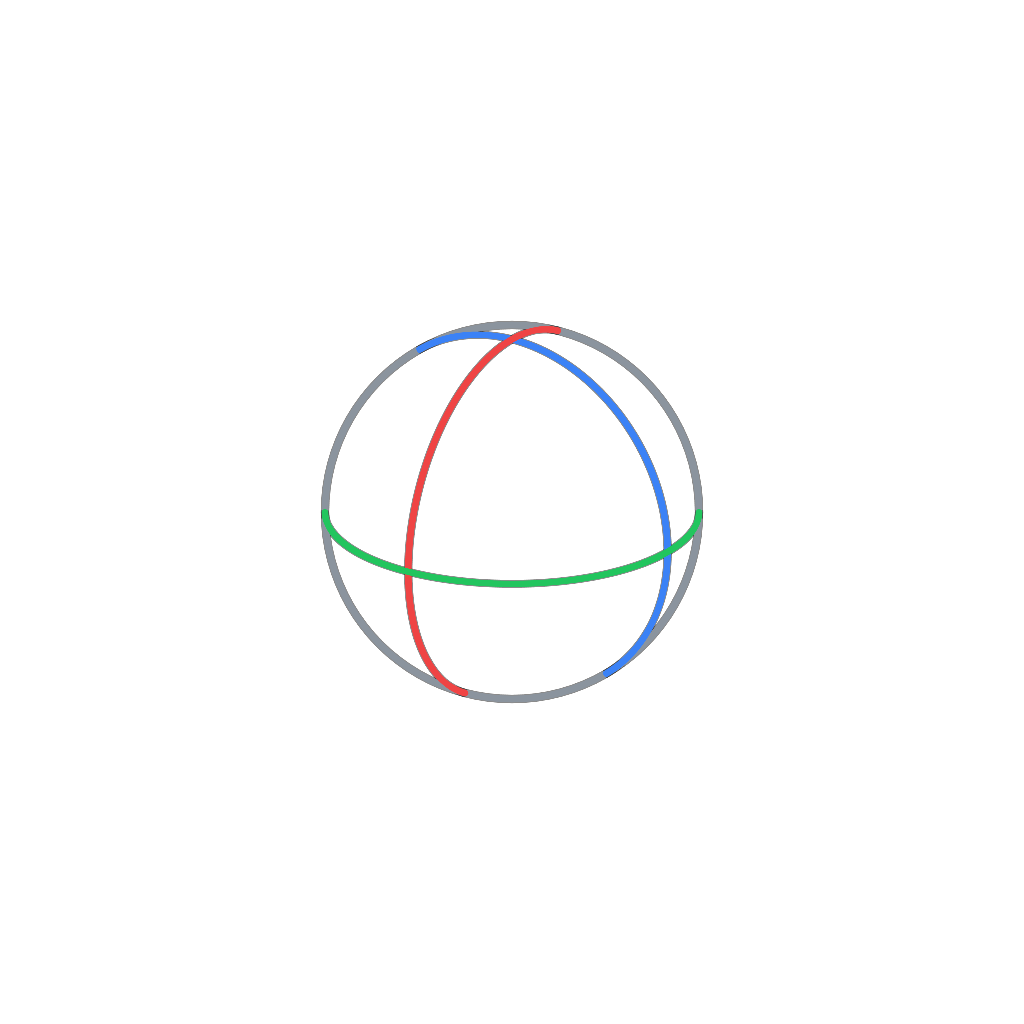
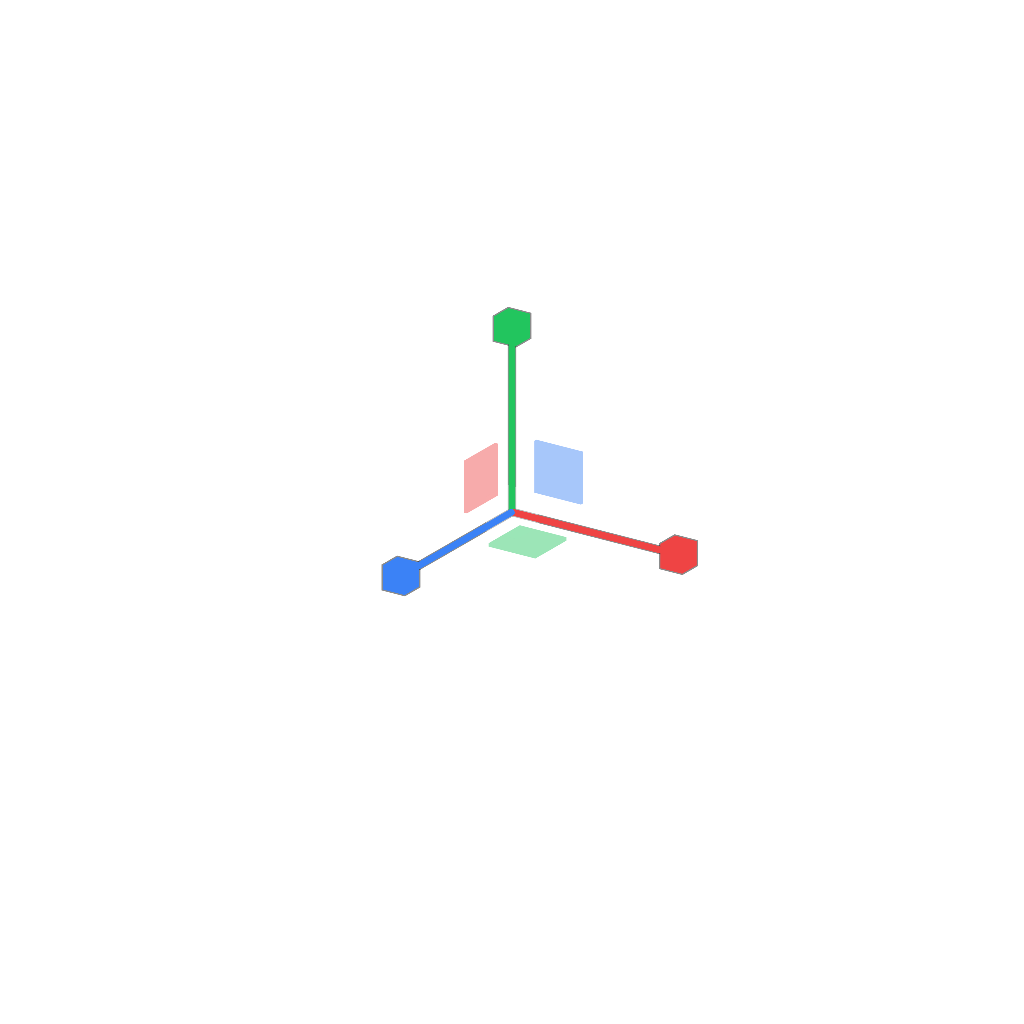
The active tool draws its gizmo on the selected object: arrows to move, rings to rotate and handles to scale. Dragging one axis of the gizmo locks the movement to it.
During an extrusion or an inset, a bar in the viewport locks the movement to an axis or to the face direction.
Importing files
Drag a file from your computer onto the viewport to import it. An image dropped on an object goes to its surface.